The example: a thank-you for helping with a move
Sam helped Alex move on Saturday. The detail they both remember is Sam carrying a houseplant as carefully as a royal passenger. That is enough material for a personal card: one favour, one familiar detail and a sentence that sounds like Alex.
Sam and Alex are invented names, and this is a demonstration rather than a customer story. The finished example uses the existing sloth-and-trophy picture from the ready-made collection. It does not depict the houseplant. The personal connection comes from the headline and note; a newly generated illustration is a separate option with its own availability and limits.
You do not need to write a polished message before opening the studio. Have a rough idea of the moment, the recipient and what you want to say. No sign-up is needed for this workflow. Keep private information out of a card you might share by link.
1. Story: describe the moment in ordinary words
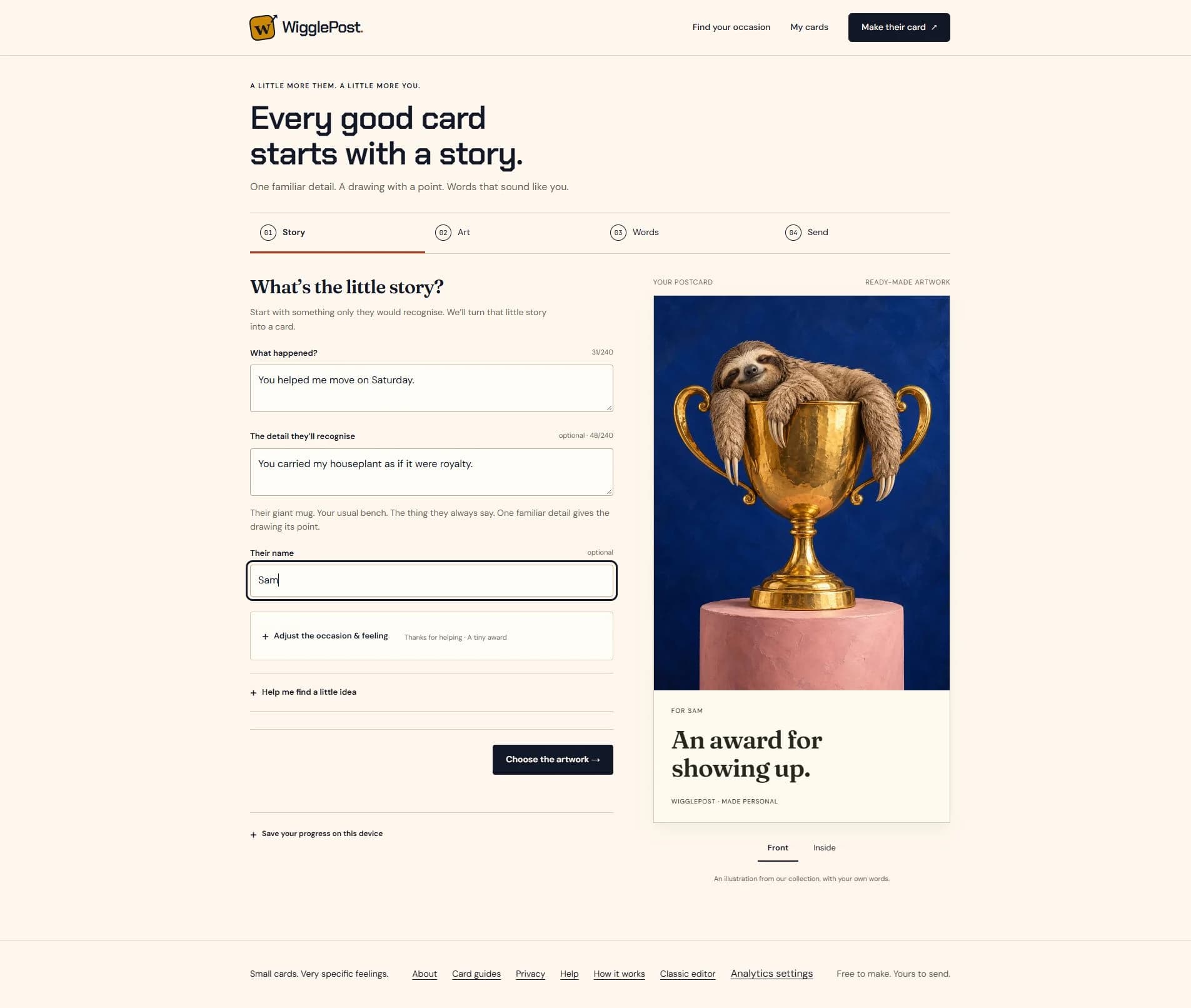
Open the illustrated card maker. The four steps are Story, Art, Words and Send. In What happened?, describe the actual occasion rather than asking for a generic greeting. In The detail they’ll recognise, add a small object, habit or shared joke. The detail field and the recipient’s name are optional.
For this example, What happened? is “You helped me move on Saturday.” The familiar detail is “You carried my houseplant as if it were royalty.” Their name is Sam. Your own version could mention the friend who waited through a delayed train, the colleague who fixed the troublesome spreadsheet or the enormous mug that appears on every video call.
Adjust the occasion & feeling lets you choose the starting direction. We use Thanks for helping and A tiny award. A tiny award fits recognition; Our little scene fits a shared moment; A friendly tease needs a joke the recipient would enjoy. These settings help frame the idea. They do not automatically send a card or create an image.
Choose the artwork moves to Art. You can go back to Story if the brief needs work. Keep the facts simple: a long history is less useful here than one recognisable detail.
2. Art: choose ready-made artwork or check illustration availability
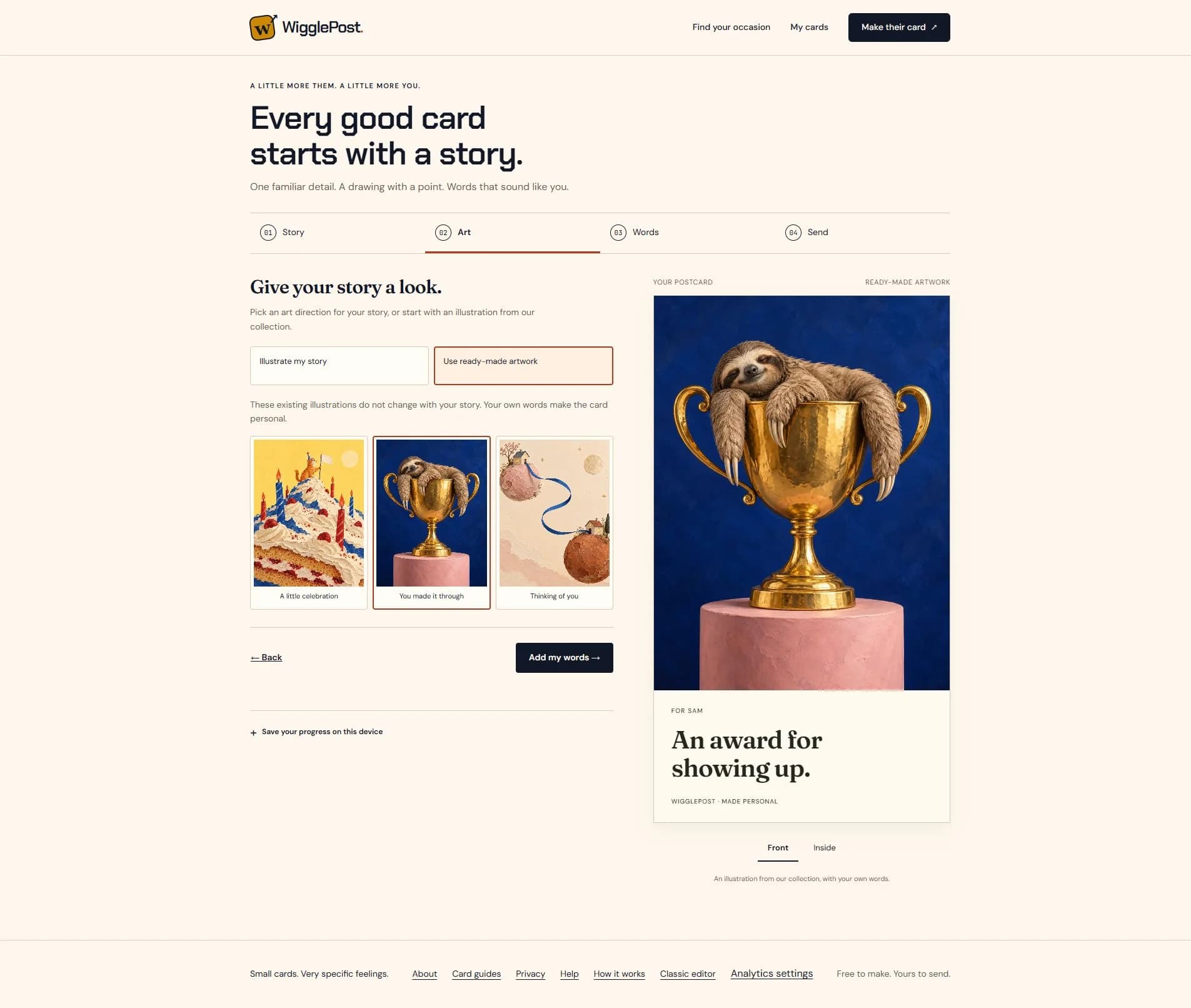
Art offers Illustrate my story and Use ready-made artwork. They do different things. Ready-made artwork is an existing picture that stays the same when you edit the story. It is a useful way to make a card with your own words without requesting a new illustration.
For the card shown here, choose Use ready-made artwork and You made it through. The picture is a sleepy sloth resting in a large trophy. We use it as a playful award for Sam. You could instead choose A little celebration or Thinking of you if those pictures fit your message better.
Illustrate my story shows art-direction examples, such as Paper collage and Risograph. Those example pictures show a style; they are not previews generated from your brief. Changing a style does not use an attempt. Generate my illustration is the explicit action that requests an image when the service is available.
Read the allowance and availability message in your own studio. A new generation or variant uses an attempt; do not treat the illustrated maker as unlimited free AI generation. The story and familiar detail may be included in an illustration prompt, so avoid information you would not want processed by an image provider. Names and the inside note are separate from that prompt.
Choose Add my words to continue with the artwork you have selected. This walkthrough stays with the ready-made image throughout.
3. Words: give the front one idea and the inside a real note
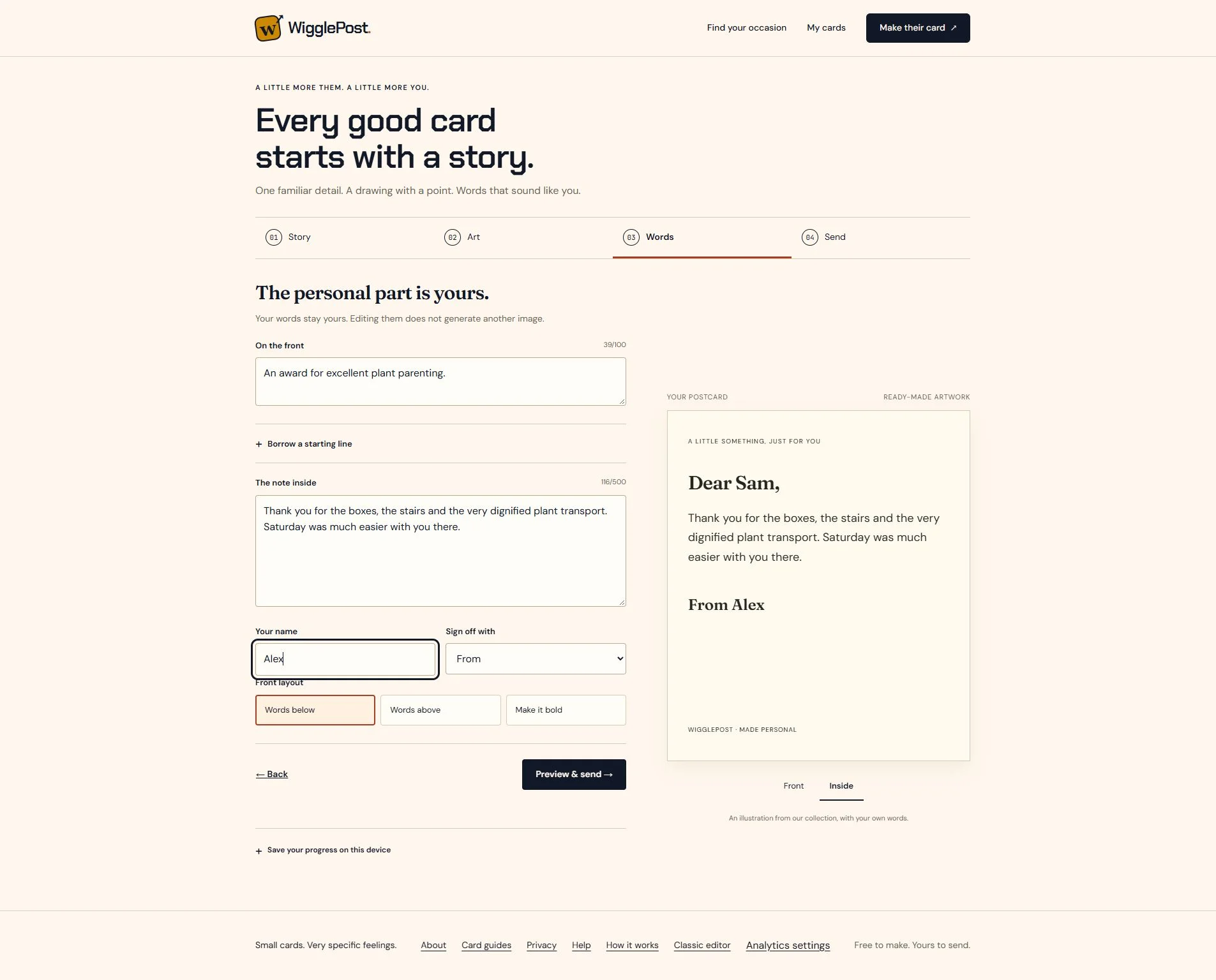
On the front is the short headline beside your artwork. The note inside is the longer message. They do not have to say the same thing. Let the front make the small joke, then use the note to say what you appreciate.
Our front reads “An award for excellent plant parenting.” The note reads “Thank you for the boxes, the stairs and the very dignified plant transport. Saturday was much easier with you there.” The houseplant detail makes an ordinary thank-you feel like their shared Saturday.
Add Your name and choose a sign-off that fits: From, With love, Yours or Just my name. We use From Alex. Front layout lets you place the words below or above the picture, or try a bolder treatment. Check the preview after changing the headline: shorter lines are often easier to read in a chat image.
Text edits keep the selected picture. They do not request another image. Borrow a starting line can help if you are stuck, but change it until it sounds like something you would say. For more examples, the thank-you and birthday guides linked below offer starting sentences you can adapt.
Use Front and Inside in the preview to inspect both sides. Read the complete note and check spelling, recipient and signature. The counters beside the text fields show the current limits. Then choose Preview & send.
4. Send: download the pictures or prepare an envelope link
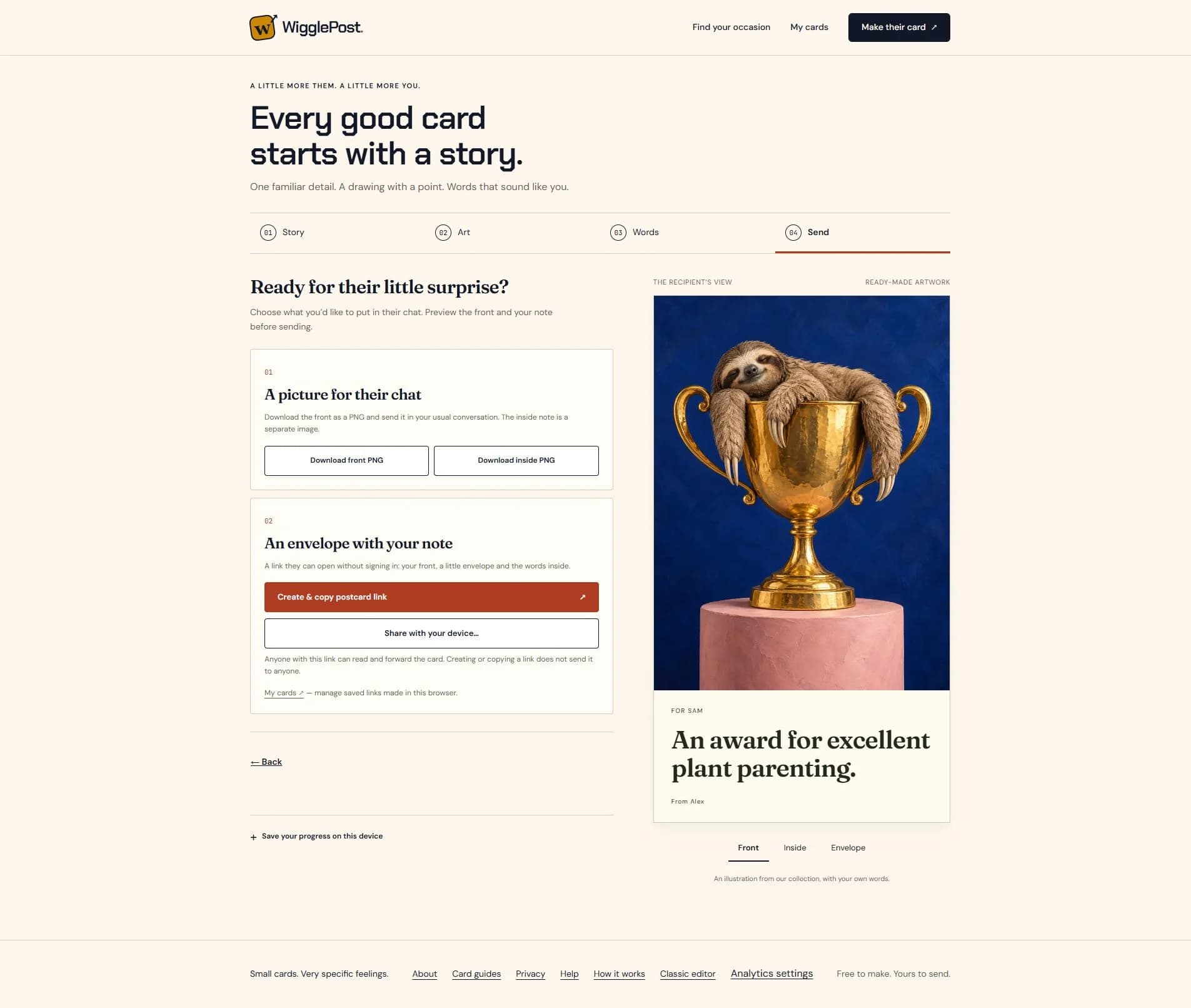
The Send step offers A picture for their chat and An envelope with your note. Download front PNG prepares the illustrated front as an image. Download inside PNG prepares the note as a separate image. Check your browser’s downloads, then attach the file or files in your normal conversation.
A PNG is a still image. It does not contain the interactive envelope or animate the artwork, and the front PNG does not secretly include the inside note. Download both images if you want to send both sides as pictures. For a moving character, use the separate classic animated postcard editor and its guide.
When saved publishing is available, Create & copy postcard link creates a saved version and prepares its link. Share with your device opens the supported system share menu. You still choose the app and recipient. Creating a link, copying it or closing the share menu does not prove that anyone received it.
Anyone with the link can read and forward the card. Keep the full link intact, and open it yourself before sending if you want to check the recipient view. A saved link is an immutable version: changing the editor later does not update the card behind an earlier link.
My cards manages saved links owned by the guest session in the browser that created them. Saved cards are available for 90 days under the current service policy. Turning a saved link off stops access on WigglePost; it cannot remove screenshots, downloaded pictures or copies in someone else’s chat. Self-contained fallback links have different controls, explained in Privacy.
Before you send your version
Check three things: the person will understand the detail, the words sound like you, and you are comfortable with anyone holding the link seeing the card. A familiar joke does not need a public explanation of a private situation.
If you need to return later, use Save your progress on this device. Drafts stay in that browser when you choose to save them; opening a saved draft on another device is not account recovery. Keep the exported images or the complete share link where you can find them.
If a download does not appear, check the browser’s downloads list and try the front and inside actions separately. If copying is unavailable, use the link shown in the studio and your device’s copy command. The support and privacy pages describe access, saved-link controls and sharing limits.
The current illustrated workflow was checked on 15 October 2026 using ready-made artwork and the fictional example shown above. Illustration allowance and publishing availability can change; the messages in your own studio are the current source for those controls.
Read privacy and saved-link controls before sharing, or get help with a card.