1. Pick a starting postcard
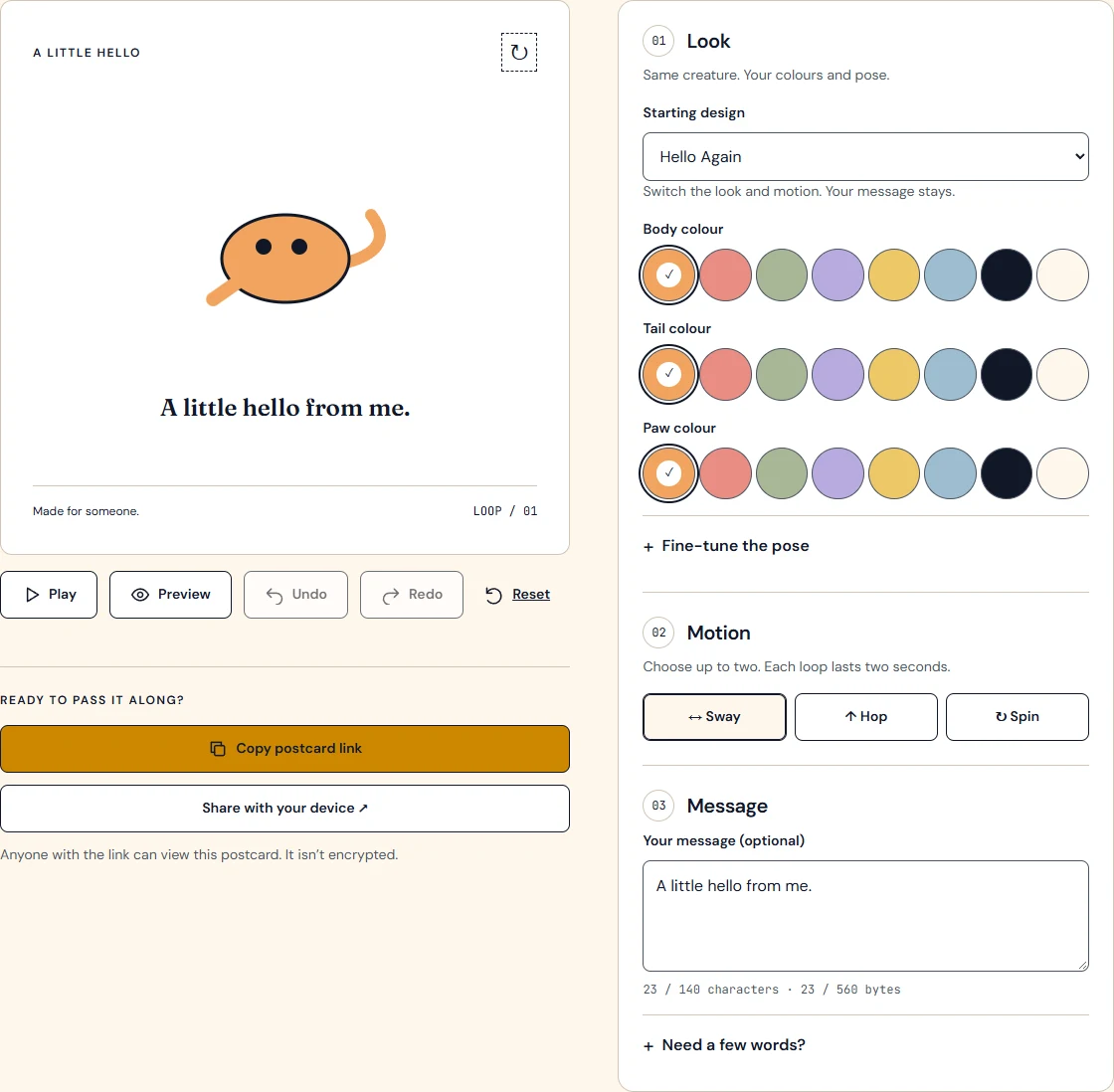
Browse Templates and choose a postcard that fits the occasion. Make this postcard opens that design in the editor. A template gives you a starting look and motion; you can change both.
Opening the editor directly also gives you a ready postcard. If you have a saved postcard on this device, choose Continue editing to restore it, or Start this postcard to keep the starting design you just chose. Keep a link to the saved postcard before replacing it if you want both versions.
2. Change the look and motion
Use Look to choose colors for the body, tail, and paw. Starting design lets you try another ready look and motion while keeping your message. Fine-tune the pose opens adjustments for the body width, eyes, tail angle, and paw angle. Small changes are enough: try a wider body or a slightly different eye position, then look at the result.
Under Motion, Sway rocks the whole character, Hop lifts it, and Spin turns the paw. Choose up to two motions. To try a third, turn one off first. Play and Pause let you inspect the movement; if your device requests reduced motion, the postcard starts still.
Undo steps back through your edits. Redo brings an undone edit back; making a new edit starts a different path. Reset returns the look, motion, and message to the selected starting design after you confirm it.
3. Add a few words and preview
Under Message, use Your message (optional). You have up to 140 characters. One specific sentence usually gives the drawing enough context: ‘Thanks for waiting with me’ says more than a long general greeting. Need a few words? opens suggestions for the selected starting design; choose one and change a detail to make it yours.
An empty message is fine. Emoji are allowed, but a link also has a size limit; if the editor asks for a smaller message, shorten it or use fewer emojis.
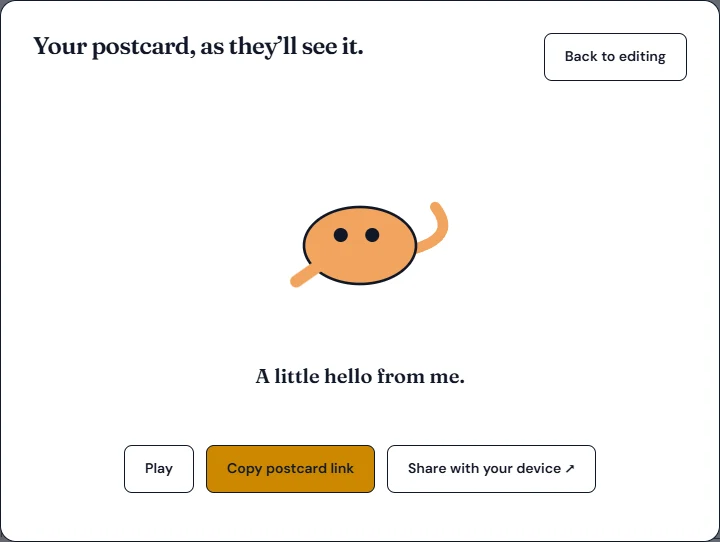
Choose Preview to see the postcard without the editing controls. Read the whole message and watch a loop. If anything feels crowded or too busy, use Back to editing and adjust it.
4. Copy the link and send it yourself
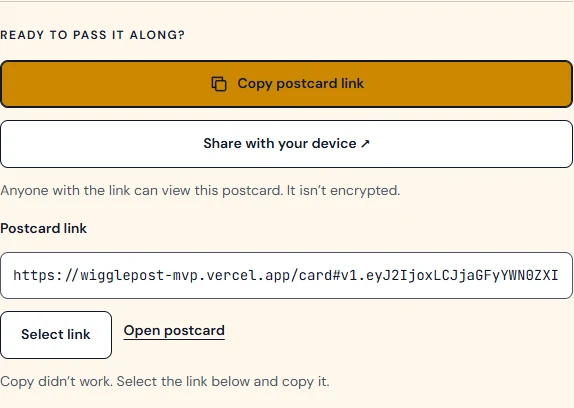
Choose Copy postcard link. When you see ‘Link copied. Paste it into your message.’, paste the link into your usual messaging app or email. Copying prepares a link; you still choose where and to whom to send it. On a phone, the sharing actions are below Message.
Where supported, Share with your device opens the system share menu with the postcard link. Choose an app and a recipient there. Closing or cancelling the menu doesn’t tell this site whether the postcard was delivered.
If copying doesn’t work, use Select link below the editor and your device’s copy command. If you’re in Preview, use Back to editing to find it. Keep the whole link, including the part after #. That part contains the postcard design and message. Open the copied link in a new tab before sending if you want to check it.
Anyone with the link can view the postcard or forward it. Don’t include addresses, passwords, or other private information.
5. Make a reply
The recipient can choose Make your own reply to use your postcard as a new starting point. Their edits make a new postcard; your original link stays the same. They then copy their own link and send it back themselves.
There is no inbox or automatic reply notification. A saved draft is stored only in the browser on that device. Forget saved postcard removes that local draft, but it doesn’t disable links you have already shared.